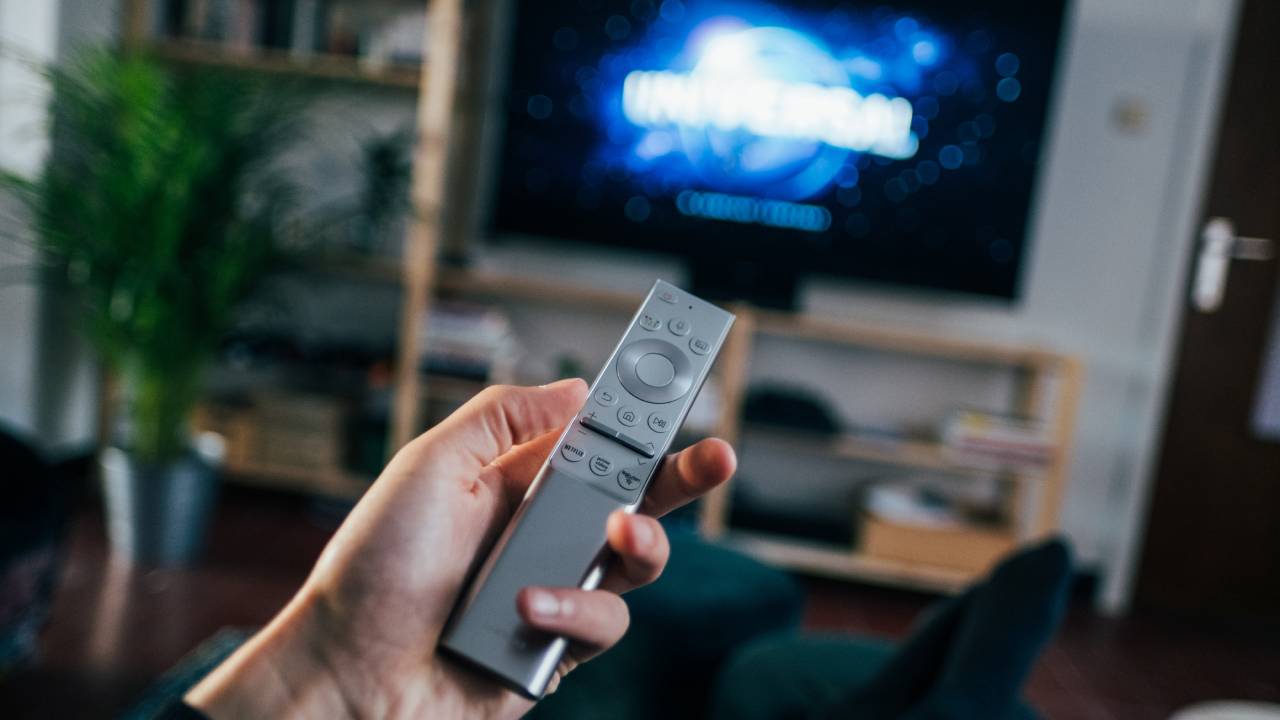
4K IPTV delivers the sharpest picture quality available for streaming — four times the detail of standard HD, with HDR colour that makes sports feel like you're watching from inside the stadium. And unlike cable's limited 4K offering, IPTV gives you access to thousands of 4K and Ultra HD channels as part of a standard subscription.
This guide covers everything you need: how 4K IPTV actually works, what internet speed is required, which devices handle it best, and how to find your 4K channels in TiviMate or IPTV Smarters.
What is 4K IPTV and How Does It Work?
4K IPTV refers to streaming live television and video-on-demand content at 3840×2160 pixel resolution — commonly called 4K UHD or Ultra HD — delivered entirely over your internet connection. Unlike broadcast TV, there's no satellite dish or cable box required.
The technical chain works like this:
- Your IPTV provider maintains dedicated servers with 4K-encoded stream files for supported channels.
- When you select a 4K channel in your IPTV app (TiviMate, IPTV Smarters), your device requests the 4K stream URL.
- The stream is delivered via H.265/HEVC or AV1 codec — both are far more efficient than the H.264 used for HD, compressing 4K data to a manageable bandwidth.
- Your device decodes the stream in real-time and sends the picture to your 4K TV via HDMI.
The key requirement beyond internet speed is a provider with actual 4K server infrastructure. Many IPTV services advertise "4K" but only offer upscaled HD. A genuine 4K stream will be tagged with [4K], [UHD], or [2160p] in your channel list.
Internet Speed Requirements for 4K IPTV
Internet speed is the single most critical factor for 4K IPTV. Here are the real-world requirements:
- Minimum for 4K: 25 Mbps per stream (H.265 encoded)
- Recommended: 50 Mbps for comfortable single-stream 4K with margin
- Multiple streams: 50 Mbps per 4K stream if multiple family members watch simultaneously
- HD backup: 10 Mbps per HD stream — use this if 4K buffers
Speed alone is not the full picture. Latency and stability matter equally. A connection with 100 Mbps peak but spikes and dropouts will buffer 4K constantly. A stable 40 Mbps wired connection outperforms a variable 150 Mbps Wi-Fi connection for IPTV purposes.
Testing Your Connection
Before streaming 4K, run a speed test at speedtest.net from the same device (or network segment) you'll stream on. Note both download speed and ping. For 4K IPTV, aim for ping below 30ms and a stable reading — run the test three times and compare.
Best Devices for 4K IPTV Streaming
Not all streaming devices decode 4K streams equally. Hardware-accelerated H.265 decoding makes a significant difference in performance and heat output:
- NVIDIA Shield TV Pro — The gold standard for 4K IPTV. Handles 4K HDR, Dolby Vision, and Dolby Atmos with zero dropped frames. Overkill for most users but unbeatable performance.
- Amazon Fire Stick 4K Max — Best value for 4K IPTV. Wi-Fi 6, hardware-accelerated H.265, and a fast processor. Under $60. The top choice for most users.
- Apple TV 4K (3rd Gen) — Excellent build quality, fast processor, and supports Dolby Vision. Works with IPTV Smarters Pro. At $129, it's premium-priced.
- Chromecast with Google TV 4K — $49, runs Google TV, supports TiviMate and IPTV Smarters from the Play Store. Solid 4K performance.
- Android TV boxes (X96, Ugoos, etc.) — Vary widely in quality. Choose boxes with Amlogic S905X4 or newer chips for reliable 4K HEVC decoding.
- Samsung / LG 4K Smart TVs — Can handle 4K streams via native apps (Smart IPTV, SS IPTV), though HDMI-connected devices offer better app options.
Best Apps for 4K IPTV
Your IPTV app must support 4K playback for streams to display in full Ultra HD resolution:
TiviMate (Best for 4K)
TiviMate handles 4K streams excellently. It uses hardware decoding by default on supported devices (Fire Stick 4K Max, NVIDIA Shield, Android TV boxes with hardware H.265). Enable hardware decoding in Settings → Player → Decoder. TiviMate's EPG also lets you see 4K-tagged channels at a glance.
IPTV Smarters Pro (Free 4K Option)
IPTV Smarters Pro supports 4K streams and includes a hardware decoding option. For free apps, it performs well. If you notice dropped frames in 4K, switch to the VLC player option within Smarters settings — VLC's H.265 decoding is highly optimized.
MX Player / VLC (Standalone Players)
Some users prefer to open their M3U playlist directly in MX Player or VLC. Both handle 4K HEVC streams with hardware acceleration. This approach is less convenient for EPG browsing but gives maximum codec flexibility.
How to Find 4K Channels in Your IPTV App
Quality IPTV providers label their 4K channels clearly in the stream list. Here's how to find and organize them:
In TiviMate
- Open TiviMate and go to the Channels tab.
- Use the search function to search for "4K", "UHD", or "2160".
- All channels with those tags in their name will appear.
- Long-press any 4K channel and select Add to Favourites.
- Create a dedicated "4K Channels" favourites group for easy access.
In IPTV Smarters Pro
- Open the Live TV section.
- Use the search bar to find channels tagged [4K] or [UHD].
- Add them to favourites for a permanent 4K playlist.
For 4K IPTV, your internet connection matters more than your device. A wired ethernet connection eliminates 90% of 4K buffering issues regardless of your device. Run ethernet to your streaming device before buying new hardware.
175,000+ VOD titles available in 4K
MonIPTV includes dedicated 4K channels and a massive Ultra HD movie library — free trial available
See Our PlansWatch the 2026 FIFA World Cup in 4K
The 2026 FIFA World Cup is the first edition with 48 teams, producing 104 matches across venues in Canada, the United States, and Mexico. Several broadcasters are delivering key matches in 4K for the first time at a World Cup:
- Fox Sports 4K (USA) — Streaming select matches in 4K HDR via the Fox Sports app and partnering platforms
- BBC Ultra HD (UK) — BBC is delivering the final and select group stage matches in 4K for UK viewers
- TSN 4K (Canada) — TSN has announced 4K coverage of Canadian national team matches and select knockout rounds
With 48 teams for the first time in history, there are more marquee matches than any previous World Cup. Having a 4K-capable IPTV setup means you won't miss a moment of the expanded group stage, or any of the dramatic knockout rounds leading to the final on July 19.
To prepare: set up your 4K IPTV configuration now, test a 4K stream end-to-end, and create your World Cup 4K favourites playlist before the opening match on June 11.
FAQ — Frequently Asked Questions
You need at least 25 Mbps per 4K stream. We recommend 50 Mbps as a practical target, especially if other devices share your connection. Stability matters as much as speed — a wired ethernet connection at 40 Mbps outperforms a variable Wi-Fi connection at 150 Mbps for IPTV viewing.
The best devices for 4K IPTV are: Fire Stick 4K Max ($59.99), NVIDIA Shield TV Pro ($199), Apple TV 4K ($129), Chromecast with Google TV 4K ($49), and Android TV boxes with Amlogic S905X4 or newer chips. Connect any of these to your 4K TV's HDMI port for full Ultra HD streaming.
The most common causes: using Wi-Fi instead of ethernet, internet speed below 25 Mbps, a device without hardware H.265 decoding, or an IPTV provider whose 4K servers are overloaded. Switch to ethernet first — this solves the majority of 4K buffering cases. If buffering persists after that, the issue is either your internet connection or your provider's server infrastructure.
Yes. IPTV Smarters Pro supports 4K streams on compatible devices. Enable hardware decoding in the app's player settings for best performance. On Fire Stick 4K Max and Android TV boxes with hardware H.265 support, Smarters Pro delivers smooth 4K playback. For the best 4K IPTV app experience, TiviMate is slightly superior due to its superior buffering management.