IPTV buffering is the #1 complaint among streaming users — and it's almost always fixable. The buffering wheel during a live goal, a playoff overtime, or a World Cup match is infuriating. But in 90% of cases, the fix takes less than 5 minutes and costs nothing.
This guide walks through the 10 most effective fixes for IPTV buffering, ordered from most impactful to least. Work through them in order and you'll find your solution.
Why IPTV Buffers — The Root Causes
Before fixing the problem, it helps to understand what's actually happening. IPTV buffering occurs when your device can't receive stream data fast enough to play it smoothly. The four root causes are:
- Slow or unstable internet — the most common cause by far
- Wi-Fi interference or distance from router — introduces variable latency
- Overloaded streaming device — too many background apps consuming RAM and CPU
- Weak IPTV server infrastructure — your provider's servers are overloaded, especially during peak hours
Fix #1–3: Your Internet Connection
Fix #1 — Switch to Wired Ethernet (Biggest Impact)
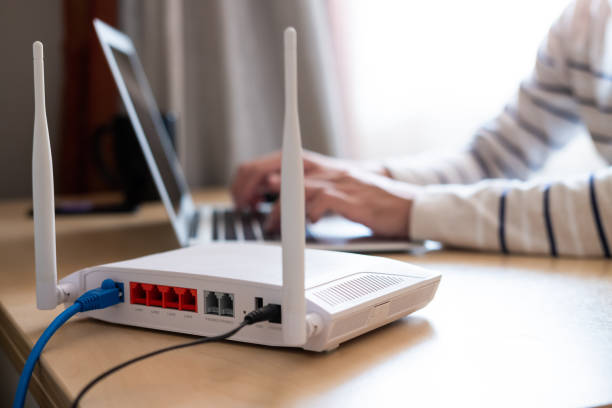
This single change eliminates 80% of IPTV buffering problems. Wi-Fi introduces variable latency and packet loss — especially in apartments with many competing networks. A wired ethernet connection delivers consistent throughput with no interference.
- For Fire Stick: use the Amazon Ethernet Adapter for Fire TV (~$15)
- For Android TV box: ethernet port is usually built in
- For Smart TV: use the built-in ethernet port if available
Switch from Wi-Fi to wired ethernet. This single change eliminates 80% of IPTV buffering issues and costs less than $15 in hardware. If you only do one thing on this list, do this one.
Fix #2 — Test Your Actual Internet Speed
Run a speed test at speedtest.net on the same device you stream on (not your phone). IPTV minimum requirements:
- HD (1080p): 10 Mbps per stream
- 4K: 25–50 Mbps per stream
- Multiple simultaneous streams: multiply accordingly
If your speed is below these thresholds, contact your ISP or lower your stream quality to 720p.
Fix #3 — Restart Your Router Before Big Events
Routers accumulate connection state over time and can slow down without obvious signs. A full power cycle (unplug for 30 seconds, replug) clears this state. Do this 15 minutes before any major live event — Champions League matches, NFL games, or World Cup fixtures.
Fix #4–6: Your Device
Fix #4 — Clear Your IPTV App Cache
Over time, IPTV apps accumulate cached data that slows them down. Clear the cache monthly:
- Fire Stick: Settings → Applications → Manage Installed Applications → [Your IPTV App] → Clear Cache
- Android TV: Settings → Apps → [Your IPTV App] → Storage → Clear Cache
- Android phone: Settings → Apps → [App] → Storage → Clear Cache
Fix #5 — Close Background Applications
Every app running in the background consumes RAM — and IPTV streaming needs RAM to buffer content smoothly. Before starting a stream:
- Press and hold the Home button on Fire Stick → select background apps to close
- On Android TV, go to Settings → Apps and force-stop non-essential apps
- Restart the device entirely for the cleanest state
Fix #6 — Upgrade Your Streaming Device
Older devices (original Fire Stick, Fire TV Stick 2nd gen) struggle with modern 4K IPTV streams. If your device is 3+ years old and buffers consistently despite good internet, the hardware is the bottleneck. The Fire Stick 4K Max or NVIDIA Shield TV eliminate hardware-related buffering entirely.
Fix #7–8: Your IPTV App Settings
Fix #7 — Lower Your Stream Resolution
This is counterintuitive but effective: a smooth 720p stream is infinitely better than a buffering 4K one. In TiviMate or IPTV Smarters Pro, look for stream quality options and select a lower-resolution variant if available. Many providers offer multiple stream quality levels per channel.
Fix #8 — Change Your DNS Settings
Your ISP's default DNS servers can slow down IPTV stream resolution. Switching to a faster DNS often improves buffering on borderline connections:
- Google DNS: 8.8.8.8 and 8.8.4.4
- Cloudflare DNS: 1.1.1.1 and 1.0.0.1
Change DNS in your router settings (affects all devices) or in your device's Wi-Fi/network settings.
Still buffering after trying these fixes?
The problem is your provider's servers. MonIPTV runs dedicated HD and 4K infrastructure — no overloaded shared servers.
Try MonIPTV FreeFix #9–10: Your IPTV Provider
Fix #9 — Request a Backup Server URL
Quality IPTV providers maintain multiple server clusters. If your primary server URL is experiencing congestion, contact support and ask for an alternative server address. This takes 2 minutes and often resolves persistent buffering immediately.
Fix #10 — Switch Providers
If you experience consistent buffering during peak hours (evenings, weekends, live sports events) despite fast internet and a modern device — the problem is your provider's infrastructure. This is non-negotiable: a provider that can't maintain stable streams during prime time is not worth paying for.
Before switching, run a free trial with a new provider during the exact time period your current one buffers. Test on a Saturday evening during a major game — that's when server quality differences are most apparent.
Preparing for Live Events: World Cup & Champions League
Live sports during major events are the ultimate stress test for any IPTV setup. The 2026 FIFA World Cup (June 11 – July 19) and the UEFA Champions League Final (May 30) will draw simultaneous viewers in the tens of millions — exactly when server strain is highest.
Pre-event checklist:
- 15 minutes before kickoff: restart your streaming device
- 10 minutes before: open your IPTV app and tune to the channel
- 5 minutes before: confirm stream is playing smoothly at your target quality
- Have a backup plan: know which alternative channel carries the same match (e.g., Fox Sports 1 as backup for Fox Sports)
- Contact support early: if you see issues, message your provider before kickoff — not during
FAQ — IPTV Buffering Fixes
Fast internet speed (download) doesn't guarantee stable streaming. What matters is consistency and latency. Wi-Fi can show 100 Mbps on a speed test but still drop packets intermittently. Switch to ethernet. If buffering persists on ethernet with fast internet, the issue is your IPTV provider's servers — they're overloaded.
Yes — VPNs typically add 10–40% overhead to your connection and can significantly increase buffering. If you're using a VPN with IPTV, try disconnecting it to see if that resolves the issue. Quality IPTV services don't require a VPN.
In order: (1) Use a Fire Stick ethernet adapter, (2) clear app cache in Settings → Applications, (3) close background apps, (4) restart the Fire Stick before streaming. If still buffering, the issue is your IPTV provider. See our Fire Stick setup guide for full optimization steps.
For reliable HD IPTV: 15–20 Mbps (with buffer room above the 10 Mbps minimum). For 4K: 50+ Mbps. The key is consistency — a 50 Mbps connection that drops to 5 Mbps every 20 minutes is worse than a steady 20 Mbps. Wired ethernet provides the most consistent connection.